
How to Add Captions to Instagram Reels Automatically
Add captions to Instagram Reels automatically in 2026 — Captions sticker, CapCut, Submagic, or BlitzCut. Accuracy comparison and reach tips included.


Captions on Instagram Reels directly increase how long people watch. Reels with captions maintain viewer attention 38% longer on average. With 50–80% of Reels watched with sound off depending on context, captions are not an optional accessibility feature — they are the primary way muted viewers can follow what you are saying.
There are two fundamentally different approaches to adding captions to Reels: Instagram's native Captions sticker (added during creation, limited style options, English-primary) and pre-burned captions using a third-party tool before upload (more accurate, full style control, works on every platform you post to).
This guide covers both approaches with exact steps, explains what you cannot do with native captions, and covers when pre-burned captions are worth the extra step.
Method 1: Instagram's Native Captions Sticker
Instagram has a built-in auto-captioning tool accessible through the Captions sticker. It transcribes speech automatically and overlays text on the video.
Availability
- iOS and Android only (not available on desktop)
- Primarily English — limited availability in other languages in most regions
- Not available in every country
- Added during video creation or editing — cannot be added to already-published Reels
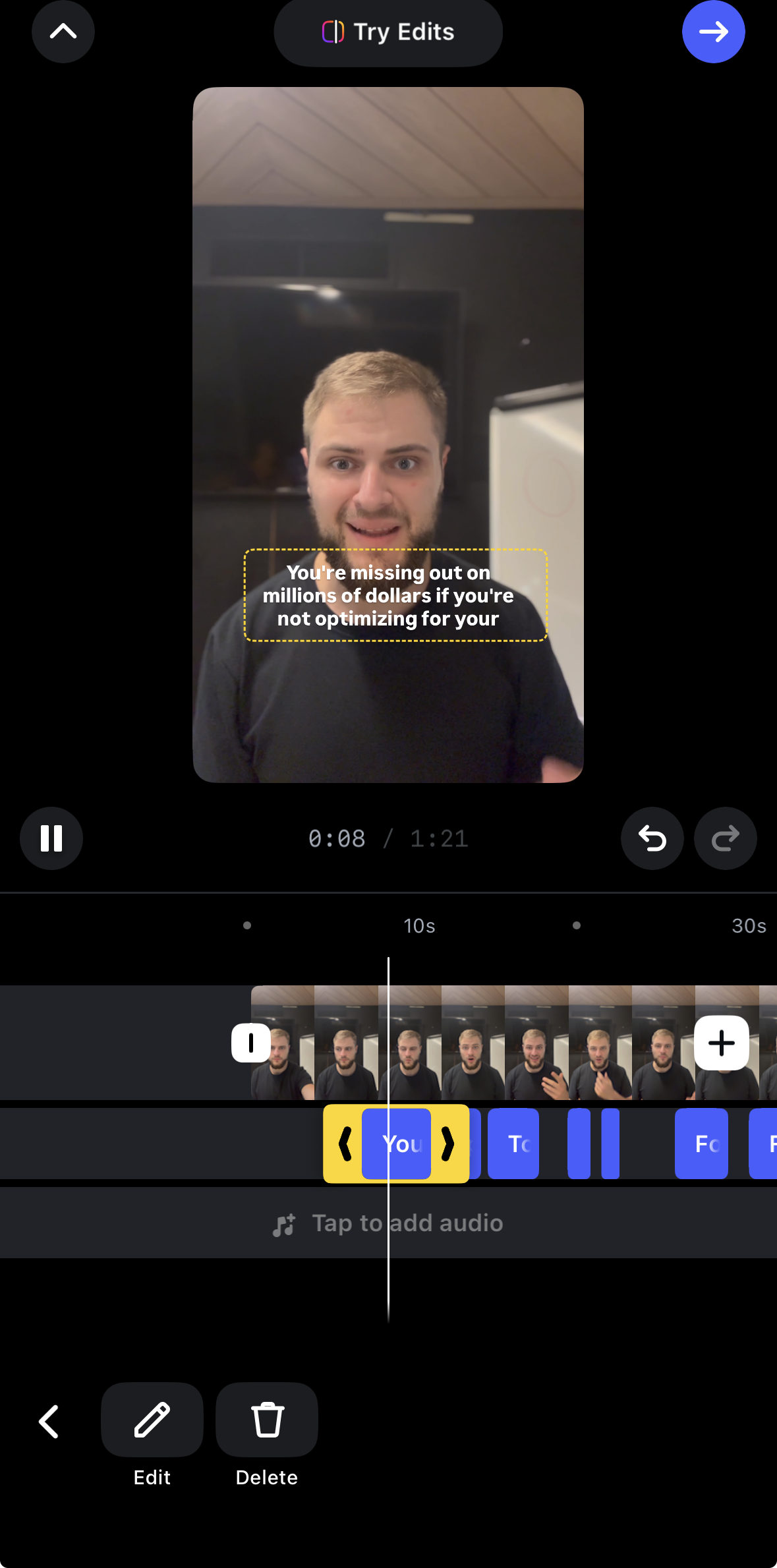
Instagram Reels editor menu. You can add various styles to your captions through this menu, though I have noticed that sometimes the captions menu can glitch out.
Step-by-Step: Adding Native Captions During Reel Creation
- Open Instagram. Tap the + icon and select Reel
- Record a new video or upload from your camera roll
- Tap Next to enter the editing screen
- Tap the Sticker icon (the square face icon at the top of the editing screen)
- Tap Captions from the sticker tray
- Instagram begins auto-transcribing — wait a few seconds for the process to complete
- Tap the generated caption text to review and correct errors word by word
- Drag the caption block to reposition it on screen
- Tap the caption style options to adjust font (Classic, Modern, Neon, Typewriter, Strong, Bubble, and others)
- Tap Done and proceed to publish
What You Can Customize with Native Captions
- Font: Multiple options including Classic, Modern, Neon, Typewriter, Strong, Signature, Editor, Bubble, Deco, Poster
- Color: Basic color selection (not a full hex picker)
- Position: Drag the caption block anywhere on the screen
- Text corrections: Tap individual words to fix transcription errors
What Native Captions Cannot Do
- No karaoke/word-by-word animation — Instagram's native tool does not produce word-by-word highlighting where each word is emphasized as spoken
- No custom hex colors — basic color picker only
- No per-word highlight colors — the Hormozi-style yellow keyword emphasis is not available
- No timing adjustment — you cannot control when individual words appear
- Not available on published Reels — if your Reel is already published, you cannot add or edit captions. Your only options are to delete and re-upload, or burn captions in externally and re-upload
Accuracy of Instagram Native Captions
Instagram's transcription accuracy is acceptable for clear, standard English speech in a quiet environment. For anything else, accuracy degrades significantly:
- Accents and regional dialects — frequently incorrect
- Technical terms, brand names, proper nouns — consistently problematic
- Fast speech — words get dropped or merged
- Background music — causes widespread transcription failure
- Low-quality microphone audio — accuracy drops substantially
Instagram's own guidance recommends manually reviewing and correcting all auto-generated captions before publishing. Creator community consensus: native captions work well enough for quick or casual content; for professional Reels, pre-burned captions from a third-party tool produce better accuracy and full style control.
Note: Instagram's algorithm in 2025 reportedly weighs caption accuracy as a distribution signal. Inaccurate auto-captions can negatively affect reach, not just accessibility.
Method 2: Pre-Burned Captions with a Third-Party Tool (Recommended for Professional Content)
Pre-burned captions are text rendered directly into the video pixels before upload. Every viewer sees them regardless of their caption settings, on every platform, on every device. For short-form social content, this is the professional standard.
Why Pre-Burned Outperforms Native
| Factor | Native Instagram captions | Pre-burned captions |
|---|---|---|
| Visible to all viewers instantly | Only if viewer has captions enabled | Yes — always visible |
| Karaoke / word-by-word style | No | Yes (with the right tool) |
| Custom brand fonts and colors | Limited | Full control |
| Cross-platform | Instagram only | Same file works on TikTok, Shorts, LinkedIn |
| Accuracy | Low-Medium | Medium-High (tool-dependent) |
| Works on published Reels | No | Yes (re-upload required) |
| Can be translated by Instagram's AI | Yes | No (text is baked into pixels) |
| Accessibility toggle | Yes | No |
Method 3: CapCut (Free, Full Editor + Captions)
CapCut is the most widely used third-party tool for TikTok and Reels captions. Available on iOS, Android, and desktop.
Step-by-Step: Adding Captions in CapCut
- Download CapCut and create an account
- Tap New Project and import your video
- Tap Captions in the bottom toolbar
- Tap Auto Captions — CapCut transcribes the audio automatically
- Review the transcript, tap any incorrect word to correct it
- Tap the caption block to access style settings: font, color, size, position
- Choose a preset (including Hormozi-style presets) or customize manually
- Tap Export — the video is rendered with captions burned in
- Upload the exported file to Instagram
CapCut accuracy: Approximately 94% for clear English audio. Struggles with accents, technical terms, and non-English content.
Pricing: Free tier adds a watermark on export. CapCut Pro at $7.99/month removes the watermark and adds premium templates.
Note: CapCut is owned by ByteDance (same parent as TikTok). Some creators have privacy concerns about using it for content with unreleased or confidential footage.
Method 4: Submagic (High Volume, High Accuracy)
Submagic is a browser-based specialist caption tool designed for high-volume short-form content creation.
Step-by-Step: Adding Captions in Submagic
- Go to submagic.co and sign in
- Upload your video file
- Submagic auto-transcribes using a combination of Deepgram, AssemblyAI, and Speechmatics
- Review the transcript, correct any errors
- Choose a caption style from 100+ presets — including named Hormozi variants
- Adjust colors, fonts, and positioning
- Export the captioned video
- Upload to Instagram
Submagic accuracy: 98.9% claimed for clear English. Strong multilingual support (100+ languages).
Pricing: Free tier allows 3 videos/month up to 90 seconds, with watermark. Starter at ~$20/month (20 videos); Pro at ~$50/month (100 videos). Video cap is per-month — daily posters need the Agency tier.
Method 5: BlitzCut (iPhone, iPad, and Mac — Silence Removal + Captions in One Workflow)
BlitzCut is a native App Store app for iPhone, iPad, and Mac that combines silence removal, transcript-based editing, and caption generation. For creators editing Reels content on any Apple device, this eliminates the need for a separate caption tool.
Step-by-Step: Adding Captions in BlitzCut
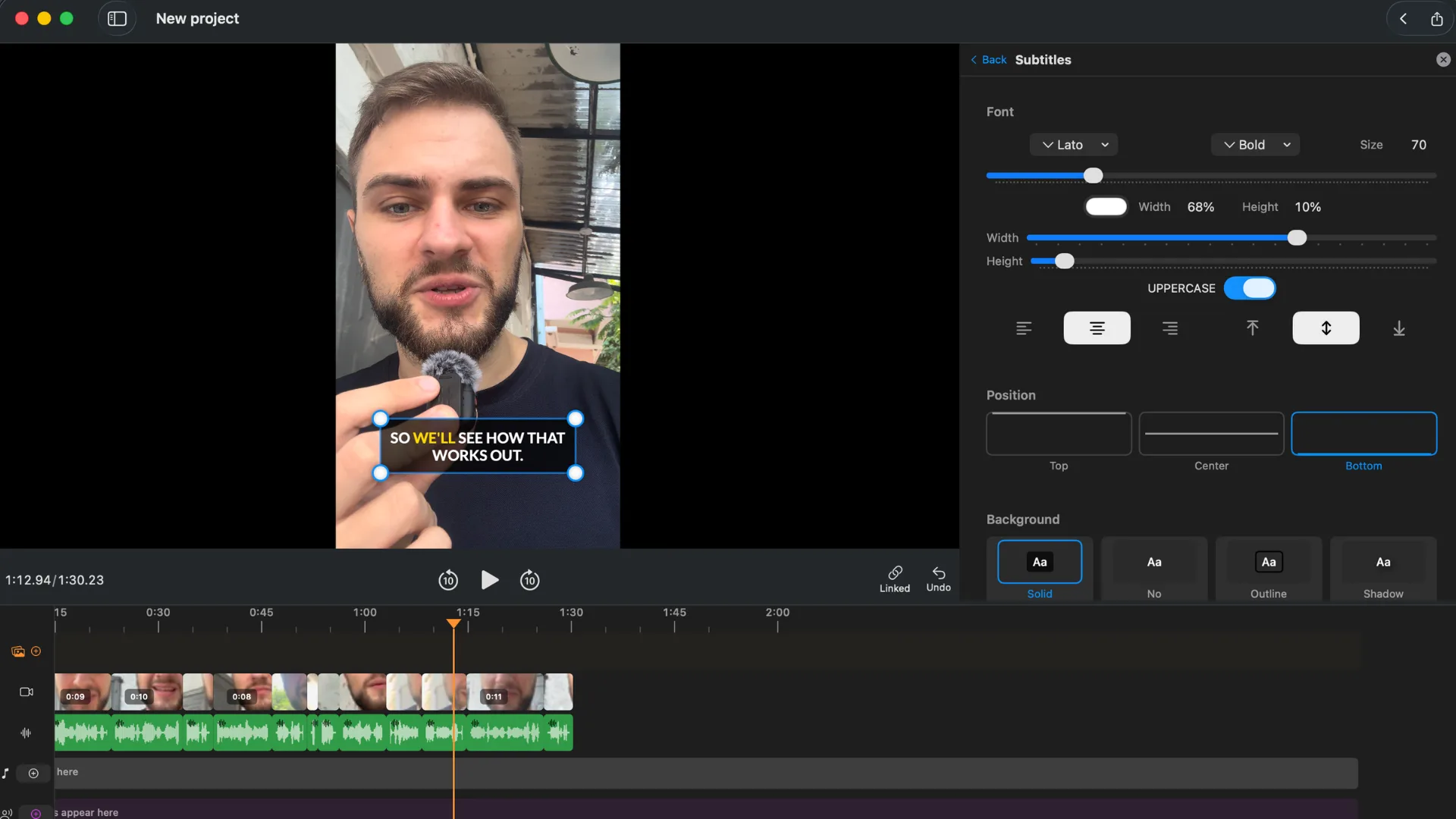
BlitzCut karaoke captions — word-by-word highlight, solid background, uppercase, fully customizable.
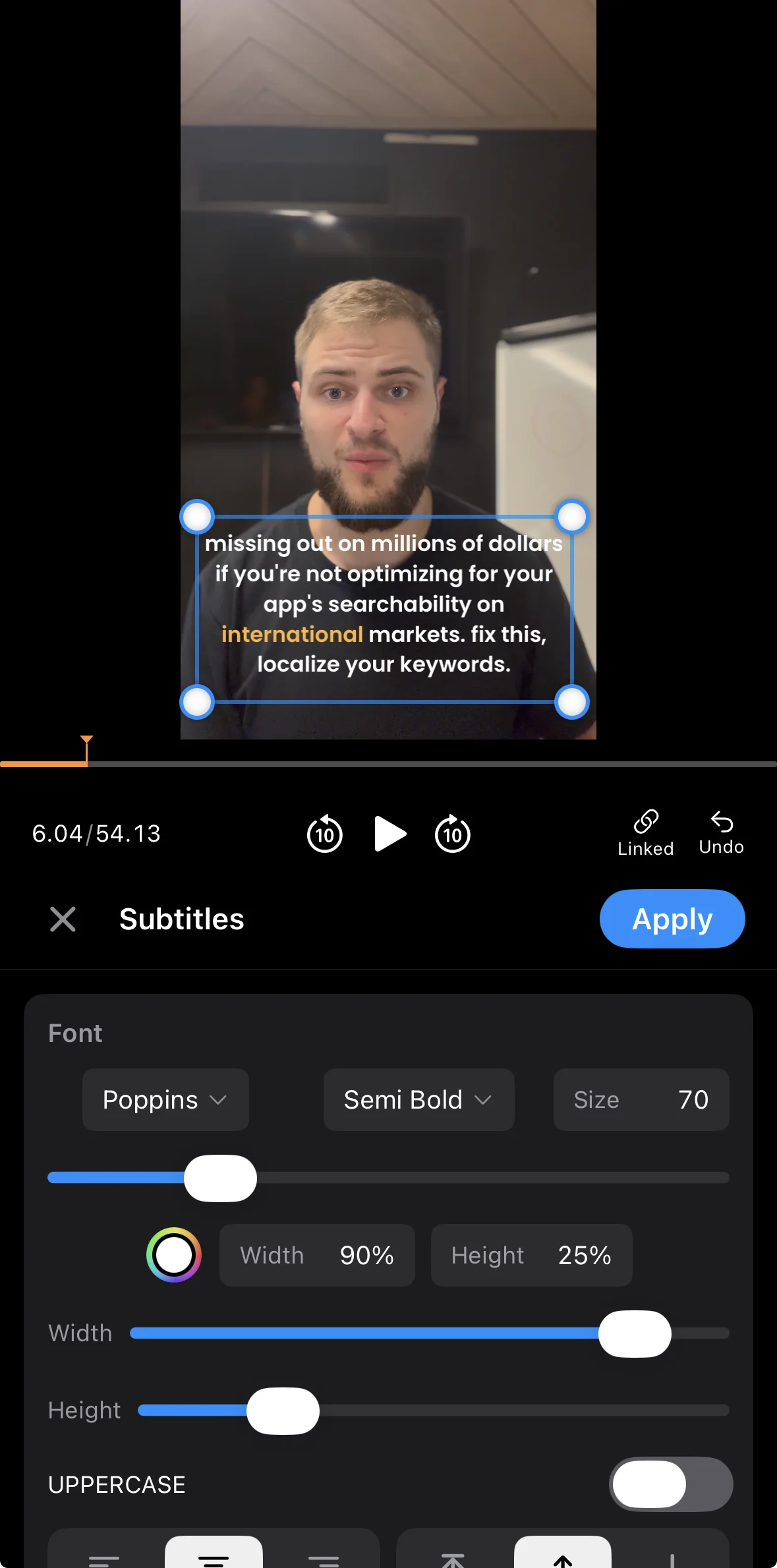
BlitzCut caption editor on iPhone — pick style, position, and font without leaving the app.
- Open BlitzCut on your iPhone, iPad, or Mac and import your video
- Silence removal runs automatically in the background (on-device, no internet required)
- The full transcript appears as editable text — review and correct any transcription errors
- Trim content if needed by deleting sections from the transcript
- Choose standard, bold center, or word-by-word karaoke style and then tap Apply
- Export in 9:16 (1080×1920) at up to 4K
- Upload the exported file to Instagram
BlitzCut accuracy: 95%+ for clear audio. Processing is partly on-device — silence removal runs locally, captions use cloud AI, and the video file never leaves your device.
Pricing: $16.99/month · $69.99/year · $129.99 lifetime* · 3-day free trial (no watermark, all features).
*US prices. BlitzCut pricing varies by region; see the price in your country.
Key difference vs. Submagic/CapCut: BlitzCut integrates silence removal and editing with captioning in a single session, on iPhone, iPad, or Mac. If your Reel starts as a raw 10-minute recording that you are cutting down to 60 seconds, BlitzCut handles the full workflow. Submagic and CapCut require a pre-edited clip as input.
Captions.ai: iOS-First All-in-One
Captions.ai is an iOS app with over 3 million creators. It handles transcription, animated captions, filler word removal, and eye contact correction in a mobile-first workflow.
Best for: Creators who film and edit on iPhone. The tight iOS integration makes it the smoothest mobile workflow for talking-head Reels.
Pricing: Freemium. Paid plans start at approximately $7.99/month.
Which Method Should You Use?
| Situation | Recommended approach |
|---|---|
| Quick casual Reels, no production requirements | Instagram native Captions sticker |
| You need karaoke/word-by-word style | CapCut, Submagic, Captions.ai, or BlitzCut |
| Same file going to TikTok + Reels + Shorts | Pre-burned third-party tool |
| You're on Mac and editing + captioning together | BlitzCut |
| High-volume agency or batch content | Submagic |
| Mobile-first workflow on iPhone | Captions.ai or CapCut mobile |
| Accessibility compliance required | Native SRT closed captions (not pre-burned) |
| Non-English language | Submagic (100+ languages) or Captions.ai |
Does Caption Style Affect Reels Reach?
Yes, indirectly. The direct ranking signals for Instagram Reels are watch time, likes-per-reach, and DM shares (confirmed by Adam Mosseri, Instagram head). Captions affect the first of these: watch time.
The mechanism:
- 50–80% of Reels are watched with sound off (Instagram head confirmed approximately 50% for Reels)
- Captions enable muted viewers to follow the content
- Viewers who can follow the content watch longer
- Longer watch time signals quality to the algorithm
- The algorithm distributes quality-signaling content more widely
Additionally, Instagram's recommendation system in 2025 reportedly scans caption text for keyword relevance — making accurate captions function similarly to hashtags for topic discoverability. Inaccurate auto-captions can introduce off-topic keywords or miss on-topic ones, affecting how the algorithm categorizes the content.
The caption-as-hook: The most important caption moment in a Reel is the first frame. Pre-burned captions appear on frame one, capturing muted scrollers at the hook. Native caption stickers depend on viewer settings and may not appear until after the first few frames process. For hook-dependent content, pre-burned captions provide the guarantee.
The Cross-Platform Advantage of Pre-Burned Captions
If you are posting the same video to Instagram Reels, TikTok, and YouTube Shorts — which is the standard multi-platform workflow — pre-burned captions are the only approach that works consistently across all three.
TikTok's auto-caption toggle and YouTube's auto-generated captions both require separate configuration per platform. Pre-burned captions require one step: render once, upload everywhere.
The caveat: pre-burned captions cannot be translated by Instagram's AI translation feature (which operates on platform-native caption tracks, not on baked-in pixels). For creators targeting multilingual audiences, generating an SRT file alongside the pre-burned version and uploading it as a separate track provides both: animated pre-burned captions for general distribution, plus a translatable SRT track for accessibility and international reach.
Frequently Asked Questions
Can I add captions to an already-published Instagram Reel? No. Instagram does not allow you to add or edit captions on a published Reel. To add captions, you must delete the original Reel and re-upload with captions. You will lose the engagement stats from the original post.
Does Instagram have auto captions for Reels? Yes — the Captions sticker in the Reels editor auto-transcribes speech. It is available on iOS and Android, primarily in English. Accuracy varies and is generally adequate for clear speech, less reliable for accents, background noise, or technical vocabulary.
What is the best tool for adding captions to Instagram Reels? For professional content: Submagic (high accuracy, 100+ languages), CapCut (most widely used, free tier available), or BlitzCut (Mac, integrates silence removal with captioning). For casual content: Instagram's native Captions sticker.
Do captions on Instagram Reels improve reach? Indirectly, yes. Captions extend watch time for muted viewers (50–80% of the audience). Watch time is the primary Reels ranking factor. Additionally, caption text is now scanned by Instagram's algorithm for keyword relevance, functioning similarly to hashtags for content discovery.
What caption style works best on Instagram Reels? Word-by-word karaoke captions in bold font with high contrast (white + black outline, or white + yellow highlight) consistently outperform static full-sentence blocks on completion rate. Colored pill backgrounds are rising as an alternative to outline-based contrast in 2026.
Can I use the same captioned video for both TikTok and Instagram Reels? Yes. If captioned with a third-party tool using the 9:16 format at 1080×1920, the same file posts to TikTok, Reels, and YouTube Shorts. Keep captions within the cross-platform safe zone (900×1400px centered) to avoid overlap with any platform's UI elements.
Why are my Instagram captions inaccurate? Instagram's native transcription struggles with accents, fast speech, background music, technical vocabulary, and low-quality microphone audio. For more accurate captions, use a third-party tool (Submagic, BlitzCut, Captions.ai) that uses dedicated speech-to-text models with higher accuracy on challenging audio.
Related: Animated Captions vs Static Captions · Best Caption Placement for Short-Form Video · Auto Captions vs Manual Captions for TikTok
Post every day without spending hours editing
BlitzCut is a native app for iPhone, iPad, and Mac. Get from raw footage to TikTok-ready in under 2 minutes, so editing is never the reason you didn't post.
Try it for freeRelated Articles
Keep Reading

Best Adobe Premiere Rush Alternatives (2026): Where to Go Before It Shuts Down
Premiere Rush support ends September 30, 2026. The best alternatives for Mac, iPhone and Android — including Adobe's own replacement — and how to migrate.

Best AI Clipping Tools, Rated by What Users Actually Say (2026)
Best AI clipping tools compared on independent user reviews, billing complaints, and pricing: Vizard, OpusClip, Klap, Quso, and BlitzReels. Plus OpusClip alternatives.

Best AI Video Editor for iPhone (2026): 8 Apps Ranked
The best AI video editor for iPhone and iOS in 2026: 8 apps ranked by captions, silence removal, speed, and price for TikTok, Reels, and Shorts.