
Safe Zone Guide for YouTube Shorts, Reels & TikTok (2026)
Platform UI elements cover your video — subscribe buttons, comment bars, navigation. Here's exactly where safe zones fall on YouTube Shorts, Reels, and TikTok.


Your video looks perfect in your editor. Then it goes live and the subscribe button covers your face. The comment count sits over your text. The TikTok navigation bar cuts off your caption.
Safe zones are the areas platform UI elements won't touch. Edit inside them and your content stays visible. Ignore them and the platform covers your work.
This happens constantly to creators who don't design for safe zones — and they have no idea it's happening because they don't see the UI overlays when they're editing.
Safe zones are the areas of your video frame that platform UI elements won't touch. Edit inside them and your content stays visible. Ignore them and the platform covers your work for you.
Thumbnail matters. And so does where you put everything else in your frame.
Most creators film and edit without thinking about what the platform will overlay on top. Subscribe buttons, like counts, comment icons, share buttons — these all sit on top of your video, and they don't care where your face is or where your text is.
If you want your content to actually be seen, you need to know where it's safe to put things.
What Gets Covered and Why
Everything outside the safe zone risks being covered by:
- Subscribe / follow buttons
- Like, comment, and share buttons
- Username and caption text
- Navigation bars (top and bottom)
- Progress bars
- Stickers and interactive elements
Each platform has different UI placement, so the safe zones differ. The bottom-right area is almost universally unsafe — that's where engagement buttons cluster. The top corners often carry usernames or menu icons. The bottom strip disappears under navigation.
Platform Safe Zones: Where the UI Falls
YouTube Shorts Safe Zone
YouTube Shorts overlays a full engagement column on the right side of the screen (like, dislike, comment, share). At the bottom, the creator name, description, and audio source take up the lower ~25% of the frame.
Stay away from:
- Right edge (roughly 15-20% of width) — like/comment/share column
- Bottom 25% of frame — description and audio attribution
- Top-left corner — sometimes the channel name
Safe to use: Center of frame, left side from mid-screen up, top-center
Instagram Reels Safe Zone
Reels has a UI column on the right (like, comment, share, audio) and a thick strip at the bottom covering the username, caption, and audio. The top carries the camera toggle and "Reels" label.
Stay away from:
- Right side (~20% of width) — engagement buttons
- Bottom 30% of frame — username, caption, audio
- Top strip — navigation elements
Safe to use: Upper-left through center of frame
TikTok Safe Zone
TikTok's UI is similar: right-side column for engagement, bottom strip for username and captions, top for the search bar and following/for-you toggle.
Stay away from:
- Right side (~20% of width) — like, comment, share, save
- Bottom 25-30% — username and caption overlay
- Top strip — navigation tabs
Safe to use: Upper-center, left side, center
Visual Guide
| Zone | YouTube Shorts | Reels | TikTok |
|---|---|---|---|
| Top | Partially safe | Navigation bar | Navigation tabs |
| Center | ✅ Safe | ✅ Safe | ✅ Safe |
| Bottom | ❌ Description/audio | ❌ Caption/username | ❌ Caption/username |
| Right | ❌ Engagement column | ❌ Engagement column | ❌ Engagement column |
| Left | ✅ Mostly safe | ✅ Mostly safe | ✅ Mostly safe |
What Gets Blocked Without Safe Zone Awareness
Here's what happens when you edit without thinking about safe zones:
Text on screen — If your caption or lower-third text sits in the bottom 25%, it will disappear under the platform's own caption/username overlay. Viewers never see it.
Your face — If you're positioned center-bottom in the frame (common for wider shots), part of your face or shoulders gets cut off by the description overlay.
Product or B-roll detail — Any product shot, text callout, or visual information placed in the right column gets covered by engagement buttons.
Subtitles — Auto-captions placed at the bottom of frame can overlap with or be hidden behind platform UI.
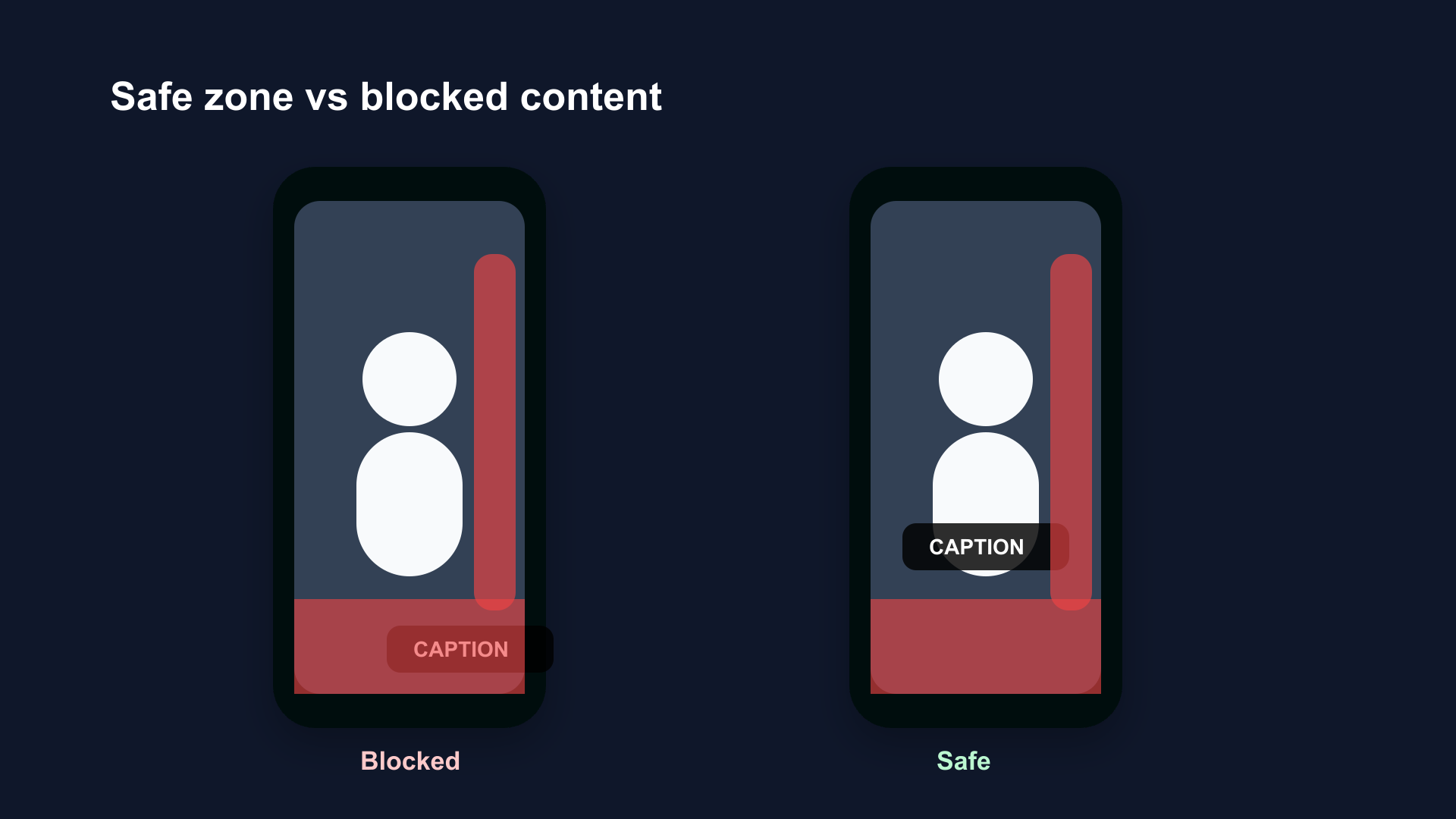
Without safe zone awareness (left), platform UI covers key content — captions disappear behind the username bar, text hides under the like column. Inside the safe zone (right), everything stays visible on every device.
How BlitzCut Shows Safe Zones
BlitzCut's safe zone overlay shows you exactly where platform UI elements will appear — inside the editor, before you export.
When you enable the safe zone view, you see a visual guide laid over your footage showing:
- Where the right-side engagement column sits
- Where the bottom caption/username strip falls
- Where top navigation overlaps
Edit with this guide visible and you'll never export a video where the platform covers your content.
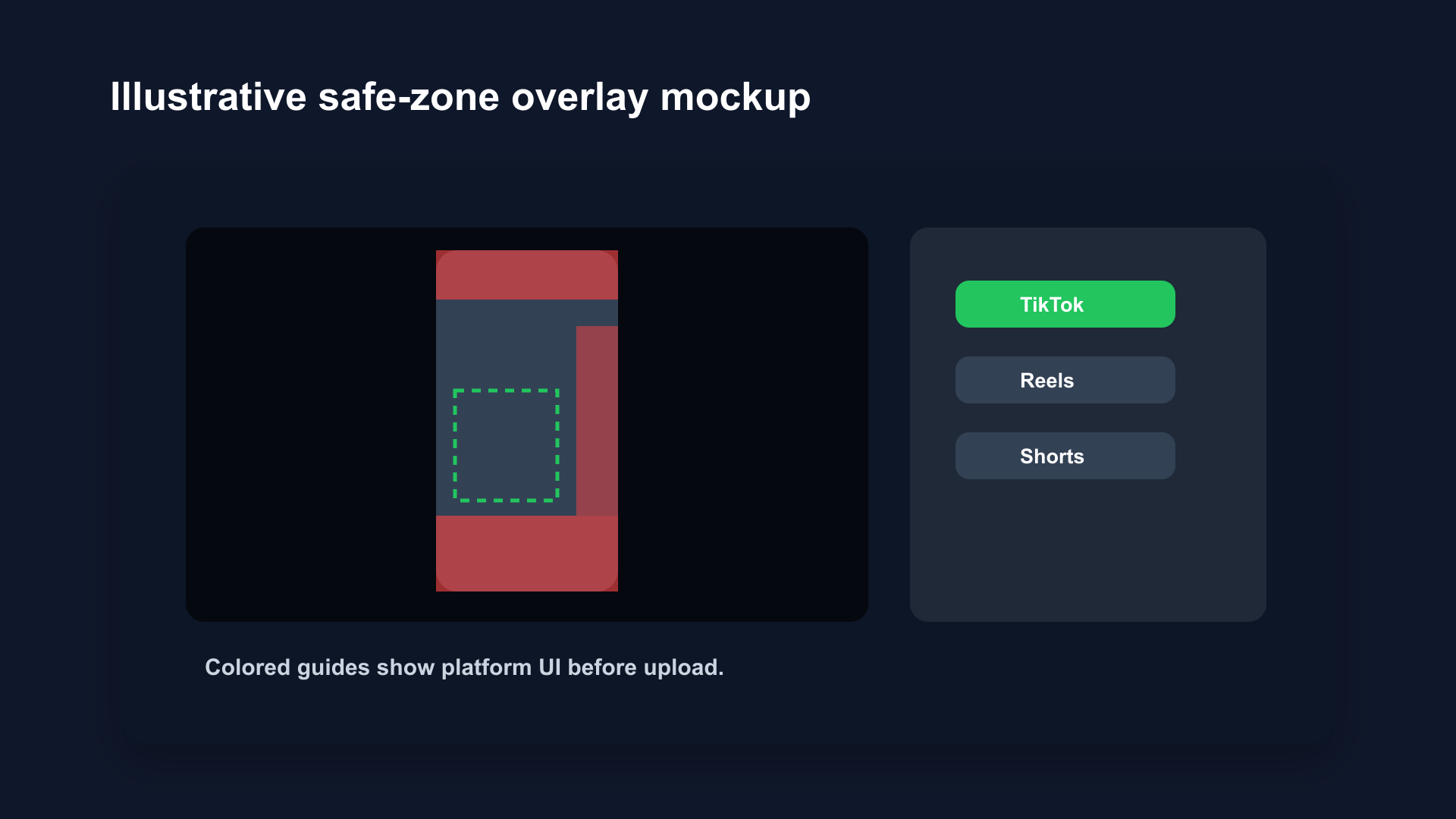
Illustrative safe-zone overlay mockup. Edit with platform UI guides visible and nothing important gets covered after upload.
This is particularly useful for:
- Adding text or captions — position them inside the safe zone without guessing
- Framing talking-head shots — know exactly how much of the bottom to leave empty
- B-roll with callouts — place text annotations where they'll actually be visible
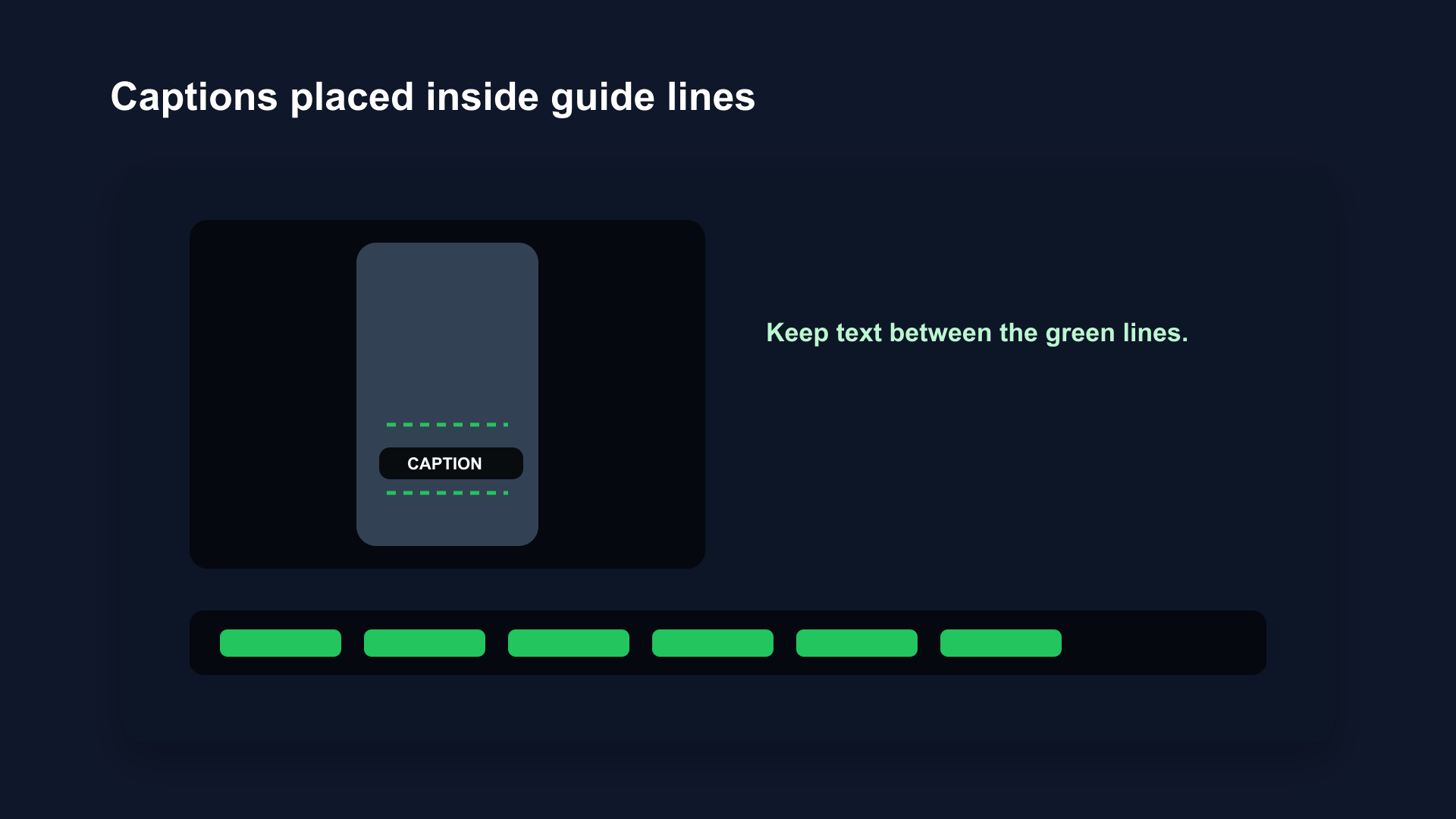
Safe zone lines visible during editing. Captions placed within the guide lines will display correctly on TikTok, Reels, and Shorts without being cropped or covered by platform UI.
Practical Safe Zone Rules for Every Video
Apply these and you'll handle 95% of safe zone issues:
1. Keep faces and text in the upper 60% of the frame Everything below that starts entering risky territory. For talking-head content, frame your shot so your head and shoulders sit in the upper two-thirds.
2. Don't put anything important in the right 20% The engagement column is always there. Treat the right 20% of your frame as off-limits for text, key visual information, and anything you need viewers to see.
3. Leave the bottom 25-30% clear of text Platform captions and usernames will overlap anything you put there. If you're adding subtitles, place them in the lower-center but check that they clear the platform's own caption strip.
4. Check before export, not after posting It's easy to catch safe zone issues in editing. It's embarrassing to catch them after a video has 10,000 views with your key text blocked.
5. Reframe repurposed content Content filmed for 16:9 YouTube often has the subject centered in the middle of the frame — which is fine for landscape but puts them directly in the engagement-button zone when cropped to 9:16. When repurposing, reframe specifically for vertical rather than just cropping.
Thumbnail Safe Zones
The same logic applies to thumbnails for YouTube Shorts. YouTube often displays a thumbnail before the video plays — and UI can overlap the thumbnail too.
Keep key information (faces, text, important visuals) in the upper-center of your thumbnail. Avoid heavy design elements in the corners and bottom strip.
A thumbnail with a face dead-center, high contrast, and no text in the bottom third will survive UI overlays on every platform.
Common Safe Zone Mistakes
Over-centering everything: Placing all content exactly center seems safe but actually puts you close to the bottom engagement strip. Shift center of interest slightly up.
Text that runs full-width: Wide text that stretches across the full bottom of the frame will get cut on the right side by the engagement column. Keep text in the left-center, clear of the right margin.
Lower-third graphics in the wrong place: Lower-thirds (name plates, captions) designed for TV look great in 16:9 but sit directly on top of platform UI in 9:16. Redesign or move them up.
Ignoring the top bar: TikTok's navigation tabs at the top can cut off content in the upper-right corner. Keep important information away from the top-right.
Frequently Asked Questions
Does every platform use the same safe zone?
No. YouTube Shorts, Instagram Reels, and TikTok all have slightly different UI placement. The right-side engagement column and bottom strip are common to all three, but the exact pixel heights vary. Always check platform-specific guidelines, or use a tool like BlitzCut that shows platform-accurate safe zone overlays.
What about horizontal videos — do they have safe zones too?
Yes, though horizontal (16:9) UI is less intrusive than vertical. YouTube's player controls sit at the bottom in a narrow strip. Facebook and LinkedIn have overlays in the corners. For horizontal content intended for YouTube, keep important elements away from the very bottom edge.
How do I check if my already-posted video has safe zone issues?
Watch your published video on a phone without pausing — you'll see exactly what viewers see, including all UI overlays. Compare that against what you see in your editor. This is the fastest way to spot problems on existing content.
Can I design for multiple platforms with one safe zone?
Yes. The most restrictive combined safe zone (right side clear + bottom 30% clear + top strip clear) works across YouTube Shorts, Reels, and TikTok. Design to the most conservative constraint and you'll be safe everywhere.
Will adding captions in BlitzCut respect safe zones?
BlitzCut's caption placement can be adjusted to sit within platform safe zones. When the safe zone overlay is enabled, you can visually confirm your captions clear the platform UI before exporting.
Post every day without spending hours editing
BlitzCut is a native app for iPhone, iPad, and Mac. Get from raw footage to TikTok-ready in under 2 minutes, so editing is never the reason you didn't post.
Try it for freeRelated Articles
Keep Reading

Best Adobe Premiere Rush Alternatives (2026): Where to Go Before It Shuts Down
Premiere Rush support ends September 30, 2026. The best alternatives for Mac, iPhone and Android — including Adobe's own replacement — and how to migrate.

Best AI Clipping Tools, Rated by What Users Actually Say (2026)
Best AI clipping tools compared on independent user reviews, billing complaints, and pricing: Vizard, OpusClip, Klap, Quso, and BlitzReels. Plus OpusClip alternatives.

Best AI Video Editor for iPhone (2026): 8 Apps Ranked
The best AI video editor for iPhone and iOS in 2026: 8 apps ranked by captions, silence removal, speed, and price for TikTok, Reels, and Shorts.