
CapCut for Mac (2026): Does It Work, Is It Free, and Better Alternatives
CapCut for Mac is a free desktop app for Apple Silicon and Intel Macs. How to install it, what it can't do, the Pro paywall catch, and Mac-native alternatives.


CapCut for Mac is a free desktop app, downloadable from capcut.com or the Mac App Store, and it runs on both Apple Silicon and Intel Macs. So yes, CapCut works on Mac. The honest answer is more nuanced: it's not a Mac-first app. The mobile versions often get new features earlier, several AI tools upload your footage to ByteDance servers, and features keep moving behind CapCut Pro. Mac creators often hit limitations that don't exist on mobile, and some have switched to Mac-native alternatives that handle the same workflow faster.
This guide covers how to install CapCut on Mac, what it actually does, where it falls short, and which alternatives solve those gaps.
The Short Answer
| Question | Answer |
|---|---|
| Is there a CapCut for Mac? | ✅ Yes, a desktop app (capcut.com or Mac App Store) |
| Does it work on Apple Silicon? | ✅ Yes, M-series natively; Intel on supported macOS versions |
| Is it free on Mac? | ✅ Free to download; some features need CapCut Pro |
| Is it the same as the mobile version? | ⚠️ Same engine, more timeline control, different feature set |
| Does it require internet? | ⚠️ For AI features (yes), basic editing (no) |
| Is there a better Mac option? | ✅ Depends on your content type |
How to Install CapCut on Mac
From the web: go to capcut.com, download the macOS build, open the .dmg and drag it to Applications. On first launch, macOS Gatekeeper may ask you to confirm, which is standard for any app downloaded outside the App Store.
From the Mac App Store: search CapCut. The App Store version goes through Apple's review and update process, which some people prefer. Feature parity between the two builds has not always been immediate.
Both are free to download. You'll be asked to sign in with a TikTok, Google, Facebook or email account to sync projects.
System Requirements
CapCut's stated requirements shift with each release, so verify on the download page before installing. The general shape:
- macOS: a recent release. Older macOS versions get dropped over time
- Chip: Apple Silicon (M-series) natively, Intel Macs on supported macOS versions
- RAM: 8GB workable, 16GB comfortable for 4K
- Storage: a few GB for the app, considerably more for project cache and media
On Apple Silicon it runs well. Performance complaints on Mac usually trace to 4K footage on 8GB of RAM, or to a project working off a slow external drive rather than the app itself.
What CapCut on Mac Can Do
The Mac desktop app handles the core CapCut editing workflow:
- Timeline editing — drag-and-drop clips, trim, split, layer
- Auto-captions — generated from audio, editable in the caption panel
- Templates — the full template library is accessible on desktop
- Transitions and effects — same library as mobile
- Background removal — AI-powered, cloud-processed
- Smart Cut (silence removal) — removes quiet segments automatically
- Export — 1080p free, 4K on Pro plan
For a Mac creator who mostly wants to edit short-form clips with captions and basic effects, the desktop app covers the essentials.
What the Mac Version Gives You Over Mobile
- A real timeline. Multi-track editing with a mouse and a full-size display is the actual reason to use desktop. Precise trimming, layering and keyframing on a phone screen is possible and unpleasant.
- Keyboard shortcuts. Split, ripple delete, playhead navigation. This is where most of the speed gain lives.
- Larger files. Long screen recordings, multicam footage and high-bitrate camera files are far more comfortable on a Mac than on a phone.
- Cross-device sync. Projects started on your phone can open on the Mac and vice versa, if both are signed into the same account.
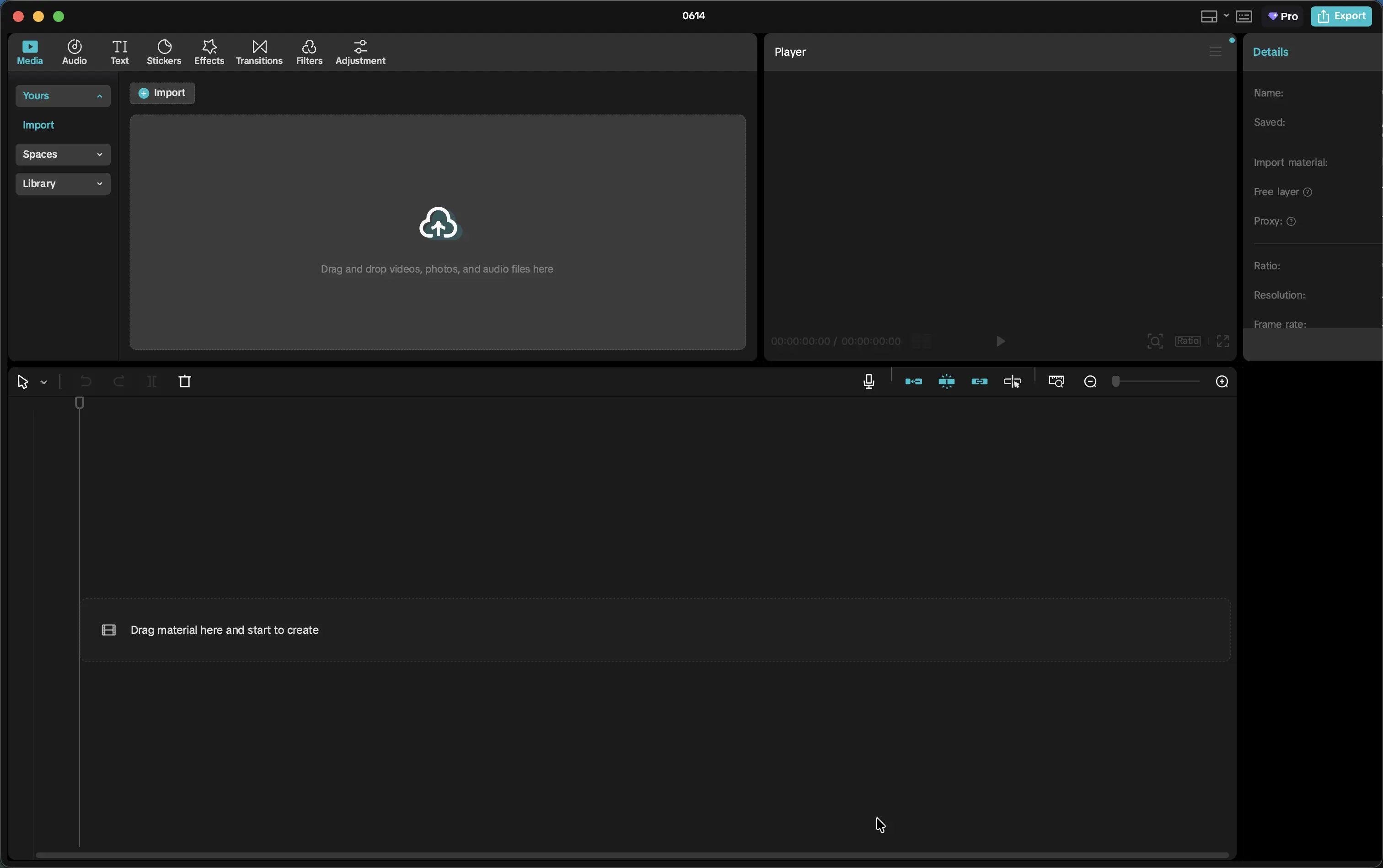
CapCut's Mac desktop app. Timeline editing, captions, and effects are available. Some AI features require cloud processing.
Where CapCut on Mac Falls Short
1. It's Not a Mac-First App
CapCut was built for iOS and Android. The Mac app is a port — functional, but the experience shows that macOS wasn't the primary design target. Some UI behaviors feel lifted directly from mobile without being adapted for a keyboard-and-mouse workflow.
2. AI Features Require Cloud Upload
Smart Cut, background removal, AI clipper, and most AI-powered features require your video to be uploaded to CapCut's (ByteDance's) servers for processing. On mobile with a fast connection, you barely notice. On Mac, where you might be working with larger files from a camera or screen recording, the upload time adds friction that desktop-native tools avoid.
3. Data Stays on ByteDance Servers
This is increasingly relevant for creators in 2026. CapCut is owned by ByteDance, the same company that owns TikTok. Video content processed through CapCut's AI tools is uploaded to ByteDance servers. For most casual creators, this isn't a practical concern. For creators working with client video, legal or medical content, or anything sensitive, it's worth factoring in.
4. New Features Land on Mobile First
When CapCut ships a significant new AI feature, it typically arrives on iOS first — sometimes months before the Mac app. If you're tracking what's new in content creation tools, you'll find that CapCut's most-discussed features are often iOS-only for a period.
5. No Deep macOS Integration
Mac-native apps integrate with things like the system share sheet, AirDrop, Quick Look preview, and Spotlight. CapCut on Mac doesn't meaningfully integrate with macOS. It runs as a contained window with its own conventions.
6. The Pro Paywall Keeps Moving
CapCut has repeatedly moved features that were free into CapCut Pro, and desktop has often been where that happens first. Auto-captions, background removal, certain effects and export options have all shifted at various points. If a specific feature is why you're installing it, check that it's in the free tier today rather than trusting a tutorial from last year.
7. Terms of Service and Availability
CapCut updated its terms in 2025 in ways that drew criticism over the rights granted to uploaded content. If you edit client work or anything with contractual restrictions on third-party processing, read the current terms first. And in early 2025, ByteDance apps including CapCut were briefly unavailable in the US during the TikTok regulatory episode. Service resumed, but it's worth weighing if CapCut is the centre of your workflow.
Best Alternatives to CapCut on Mac (2026)
For Talking Head Content: BlitzCut
BlitzCut is a Mac-native app (also on iPhone) purpose-built for the talking head video workflow: silence removal, filler word editing via transcript, animated karaoke captions, and vertical social export.
Silence removal and editing process on-device, captions use cloud AI, and your video file is never uploaded — no ByteDance servers, no waiting for a cloud to return your edited video. For a 10-minute talking head video, the full workflow (silence removal → filler word cleanup → captions → export) completes in 15–30 minutes.
Price: $16.99/month, $69.99/year, or $129.99 once*, with a 3-day free trial. One subscription covers Mac, iPhone and iPad. The yearly plan is cheaper than CapCut Pro ($180/year) and far cheaper than Descript.
*US prices. BlitzCut pricing varies by region; see the price in your country.
Best for: Tutorial creators, TikTokers, Reels creators, LinkedIn video — anyone making talking-head content on a Mac.
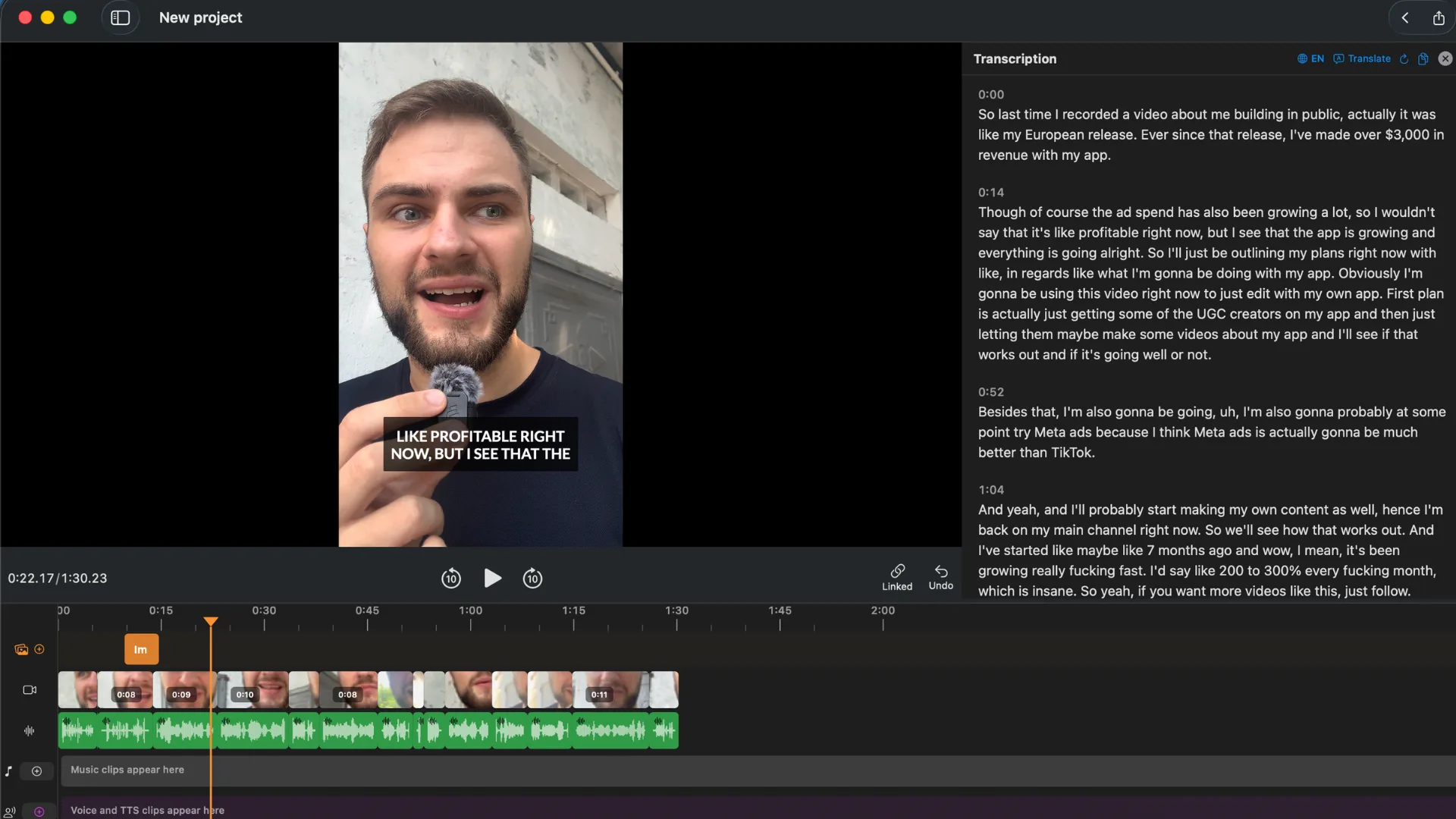
BlitzCut keeps your video on your Mac — silence removal runs locally, captions use cloud AI, nothing is uploaded. Silence removal on a 10-minute video completes in under 10 minutes.
For Long-Form and Podcast Editing: Descript
Descript is the strongest transcript-based editor on Mac. Import a recording, get a full text transcript, edit the video by editing the words. Studio Sound improves audio quality dramatically. Filler word removal is AI-powered.
It's significantly more expensive than CapCut or BlitzCut (Creator plan at $24/month billed yearly, $35 monthly), but for podcast producers and long-form YouTubers, the time savings are substantial.
Best for: Podcasters, interviewers, long-form content creators with 30+ minute recordings.
For Full Production: Final Cut Pro
Final Cut Pro is Apple's professional video editor, and it's genuinely excellent on Mac. It's a one-time purchase ($300 — free 90-day trial available), timeline-based, and takes full advantage of Apple Silicon for fast processing and export.
It doesn't have automatic silence removal or built-in captions in the same way CapCut does, but it handles every other aspect of video production at a professional level.
Best for: Mac users who produce polished long-form content and want a professional editing suite.
For Short-Form Effects and Templates: CapCut Web
If you specifically want CapCut's template library and effect styles but prefer not to install the desktop app, CapCut has a web editor (capcut.com) that runs in-browser on Mac with no installation. It's essentially the same as the desktop app without the DMG.
The limitations are the same (cloud processing, ByteDance upload), but it removes one piece of software from your system.
Best for: Occasional CapCut users who don't want a full installation.
For Free Mac Editing: iMovie or DaVinci Resolve
- iMovie — free, Mac-native, timeline editor. No silence removal, no auto-captions built-in, but it's a solid starting point for beginners.
- DaVinci Resolve — free professional editor (paid Studio tier available). Comparable to Premiere Pro at no cost, but has a steep learning curve.
Best for: Creators who want free options and are willing to do more manual editing work.
Comparison Table
| App | Mac-native | On-device processing | Price | Best for |
|---|---|---|---|---|
| CapCut | ⚠️ Port | ❌ Cloud AI | Free / $20/mo | Short-form, templates |
| BlitzCut | ✅ Native | ⚠️ Partly on-device | $16.99/mo* | Talking head, captions |
| Descript | ✅ Native | ❌ Cloud | $24–55/mo | Podcast, long-form |
| Final Cut Pro | ✅ Native | ✅ On-device | $300 one-time | Full production |
| iMovie | ✅ Native | ✅ On-device | Free | Beginner basic |
| DaVinci Resolve | ✅ Native | ✅ On-device | Free / paid Studio | Pro, free tier |
*US prices. BlitzCut pricing varies by region; see the price in your country.
Should You Use CapCut on Mac?
Yes, if:
- You're already using CapCut on mobile and want to continue on desktop
- You like the template library and effects ecosystem
- Data privacy for your content isn't a concern
- You're on the free tier and the budget is zero
Consider an alternative if:
- You make talking head content and want faster on-device silence removal → BlitzCut
- You produce podcasts or long-form video → Descript
- You want a professional suite without a subscription → Final Cut Pro
- You're privacy-conscious about ByteDance handling your footage
Frequently Asked Questions
Can I use CapCut on a MacBook Air?
Yes. CapCut Desktop runs on MacBook Air and MacBook Pro on supported macOS versions, including Apple Silicon models. An M-series MacBook Air handles 1080p editing comfortably; 4K work benefits from 16GB of RAM. Performance on AI features depends on your internet connection since those are cloud-processed.
Is CapCut free on Mac?
The CapCut desktop app is free to download and the core editing is free: timeline editing, templates, and 1080p export with no watermark. CapCut Pro ($19.99/month or $179.99/year) adds 4K export, the full AI toolkit, and cloud storage. The set of Pro-only features has grown over time, so check that the feature you need is still free.
Is CapCut for Mac the same as the mobile app?
Same underlying editor and shared projects, but the desktop version gives you multi-track timeline control, keyboard shortcuts and better handling of large files. Feature availability between the two isn't always identical.
Can I use CapCut on Mac without an account?
You'll be prompted to sign in with TikTok, Google, Facebook or email. An account is what enables project sync between devices.
Is CapCut safe to use for client work?
Read the current terms of service before deciding. CapCut's 2025 terms update drew criticism over the rights granted to uploaded content, and several AI features process footage on ByteDance servers rather than locally. For confidential material, an editor that processes on-device avoids the question.
Does CapCut watermark videos on Mac?
No. Unlike many free video editors, CapCut does not watermark exported videos on the free tier. This is one of the reasons it's popular among creators on a budget.
What's the best free alternative to CapCut on Mac?
iMovie is the easiest free Mac-native alternative — familiar interface, no installation drama, basic editing covered. DaVinci Resolve is the most powerful free option but has a learning curve. For talking head content specifically, BlitzCut has a free trial worth testing before committing to any paid plan.
Does CapCut on Mac support Apple Silicon (M1/M2/M3)?
Yes. CapCut Desktop runs natively on Apple Silicon Macs. Export speed on M-series chips is noticeably faster than on Intel Macs for the same video resolution.
Related: Best CapCut Alternatives (2026) · BlitzCut vs CapCut · Descript vs CapCut (2026) · Best Mac Video Editor for Silence Removal
Last Updated: September 30, 2026 Category: Tool Guides
Post every day without spending hours editing
BlitzCut is a native app for iPhone, iPad, and Mac. Get from raw footage to TikTok-ready in under 2 minutes, so editing is never the reason you didn't post.
Try it for freeRelated Articles
Keep Reading

Best Adobe Premiere Rush Alternatives (2026): Where to Go Before It Shuts Down
Premiere Rush support ends September 30, 2026. The best alternatives for Mac, iPhone and Android — including Adobe's own replacement — and how to migrate.

Best AI Clipping Tools, Rated by What Users Actually Say (2026)
Best AI clipping tools compared on independent user reviews, billing complaints, and pricing: Vizard, OpusClip, Klap, Quso, and BlitzReels. Plus OpusClip alternatives.

Best AI Video Editor for iPhone (2026): 8 Apps Ranked
The best AI video editor for iPhone and iOS in 2026: 8 apps ranked by captions, silence removal, speed, and price for TikTok, Reels, and Shorts.