
How to Remove Filler Words from Video (Uh, Um Removal Guide 2026)
Remove uh, um, and filler words from video fast. BlitzCut transcribes your video, highlights every filler word, and cuts them on select — Mac and iPhone.


The fastest way to remove filler words from video in 2026 is transcription-based editing: BlitzCut transcribes your video, displays every word including every "uh," "um," and "you know" in a text view, and you delete them by selecting the text — the video cuts happen automatically. No scrubbing timelines. No listening for every pause.
Filler words are the silent killer of creator credibility. A 10-minute tutorial with 40 "ums" reads as nervous, unpolished, and hard to follow. Viewers don't consciously count them, but they feel the drag — and they scroll.
The problem until recently was that removing filler words required listening to your entire video, pausing at every filler, making a cut, deleting the clip, and closing the gap. For a 20-minute recording, that could mean 90 minutes of painful scrubbing.
Transcription-based editing solves this completely.
If a sentence doesn't add value — cut it.
People's attention spans are cooked. Every unnecessary word is a chance for your viewer to leave. When you remove filler, you're not just cleaning audio — you're respecting your audience's time.
BlitzCut's transcription editing makes this fast: see every word you said as text, select the filler, delete it. The video cut happens automatically.
What Are Filler Words (And Why They Hurt Your Videos)
Filler words are verbal placeholders speakers use while thinking. The most common ones in English:
- Uh and um — most frequent, appear mid-sentence
- Like — used conversationally ("and I was like, totally...")
- You know — seeking listener confirmation
- Basically, literally, actually, honestly — overused intensifiers
- So... at the start of answers
- Right? as a conversational check-in
These are normal in speech. The human brain fills silence with sound automatically. But video is not live conversation — viewers have no obligation to wait through your thinking pauses, and they won't.
How Much Do Filler Words Actually Matter?
Research from communications studies and creator data consistently shows:
- Speakers average 1–2 filler words per minute in normal conversation
- On camera without preparation, that rises to 4–8 per minute
- A 15-minute video can contain 60–120 filler instances
- Perceived expertise drops significantly when filler word density exceeds 3 per minute
For YouTube tutorials, podcast clips, and course content, filler-heavy audio correlates with lower watch time and more critical comments. For client-facing video, it's a direct credibility signal.
The Two Approaches to Filler Word Removal
Approach 1: Manual Timeline Scrubbing
The traditional method:
- Import video into a timeline editor (Premiere, Final Cut, iMovie)
- Play the video at 1x speed
- When you hear a filler word, pause
- Use the blade or cut tool to isolate the filler
- Delete the clip segment
- Close the gap
- Repeat 60–120 times
Time required for a 15-minute video: 45–90 minutes. Error rate is high because it's hard to hear soft fillers at speed, and making clean cuts around fast speech is precise work.
Approach 2: Transcription-Based Editing
The modern method:
- Import video into BlitzCut
- BlitzCut transcribes the entire video — every word is timestamped
- View the full transcript in the text editor
- Scan or search for filler words visually
- Select the filler word text
- Delete it — the video edit happens automatically
- Export
Time required for a 15-minute video: 5–10 minutes. Because you're working with text, not audio waveforms, you can visually scan an entire transcript in seconds and identify every "um" at a glance.
How to Remove Filler Words in BlitzCut (Step-by-Step)
BlitzCut is available on iPhone, iPad, and Mac from the App Store.
Step 1: Import Your Video
Open BlitzCut and tap the + button to import your video from your camera roll or file system. BlitzCut supports all standard formats including MP4, MOV, and M4V.
Step 2: Wait for Transcription
BlitzCut automatically transcribes the video as soon as it imports. Transcription runs via BlitzCut's fast AI backend — your video file is not uploaded. For a 10-minute video, transcription typically completes in 60–90 seconds.
Step 3: Open the Transcript View
Once transcription is complete, you'll see the full text of your video displayed word-by-word. Each word in the transcript is linked to its timestamp in the video. When you tap a word, the video jumps to that exact moment.
Step 4: Find and Select Filler Words
Scan through the transcript. Filler words stand out immediately in text form — your eye catches "um," "uh," and "you know" far faster than your ear does at playback speed.
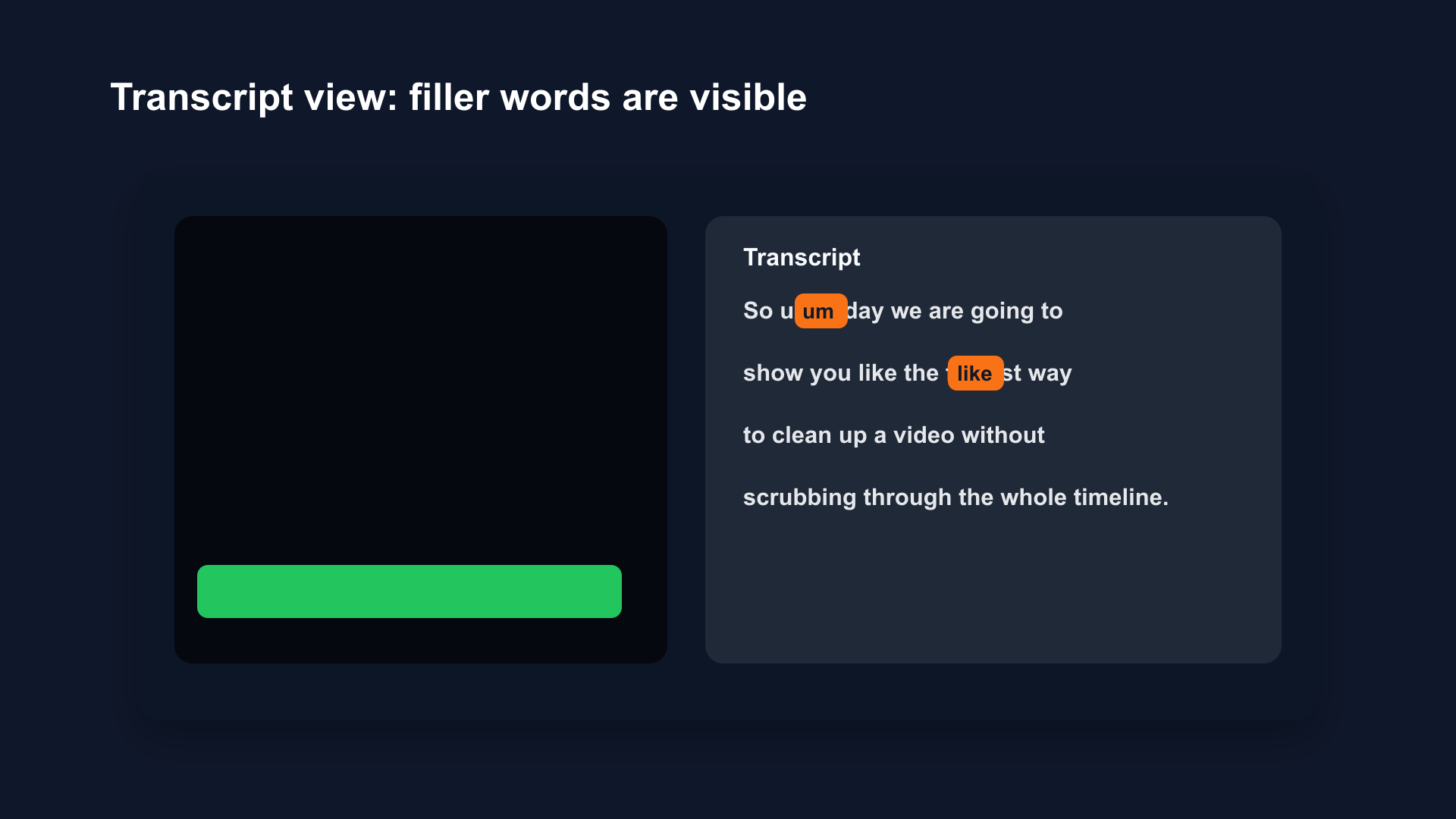
Illustrative transcript editing mockup. Filler words like "um", "uh", and "you know" are immediately visible when scanning text — faster than listening at 1x speed and pausing at each one.
To remove a filler:
- Tap the word to select it
- Drag the selection handles to include the exact portion you want removed (just the "um" or the full pause phrase)
- Review the highlighted word in context
Step 5: Delete
Tap Delete (or the trash icon). The word is removed from the transcript and the corresponding segment is cut from the video. BlitzCut automatically closes the gap — no ripple edit required.
Repeat for each filler. For a well-recorded 10-minute video, this typically takes 3–7 minutes.
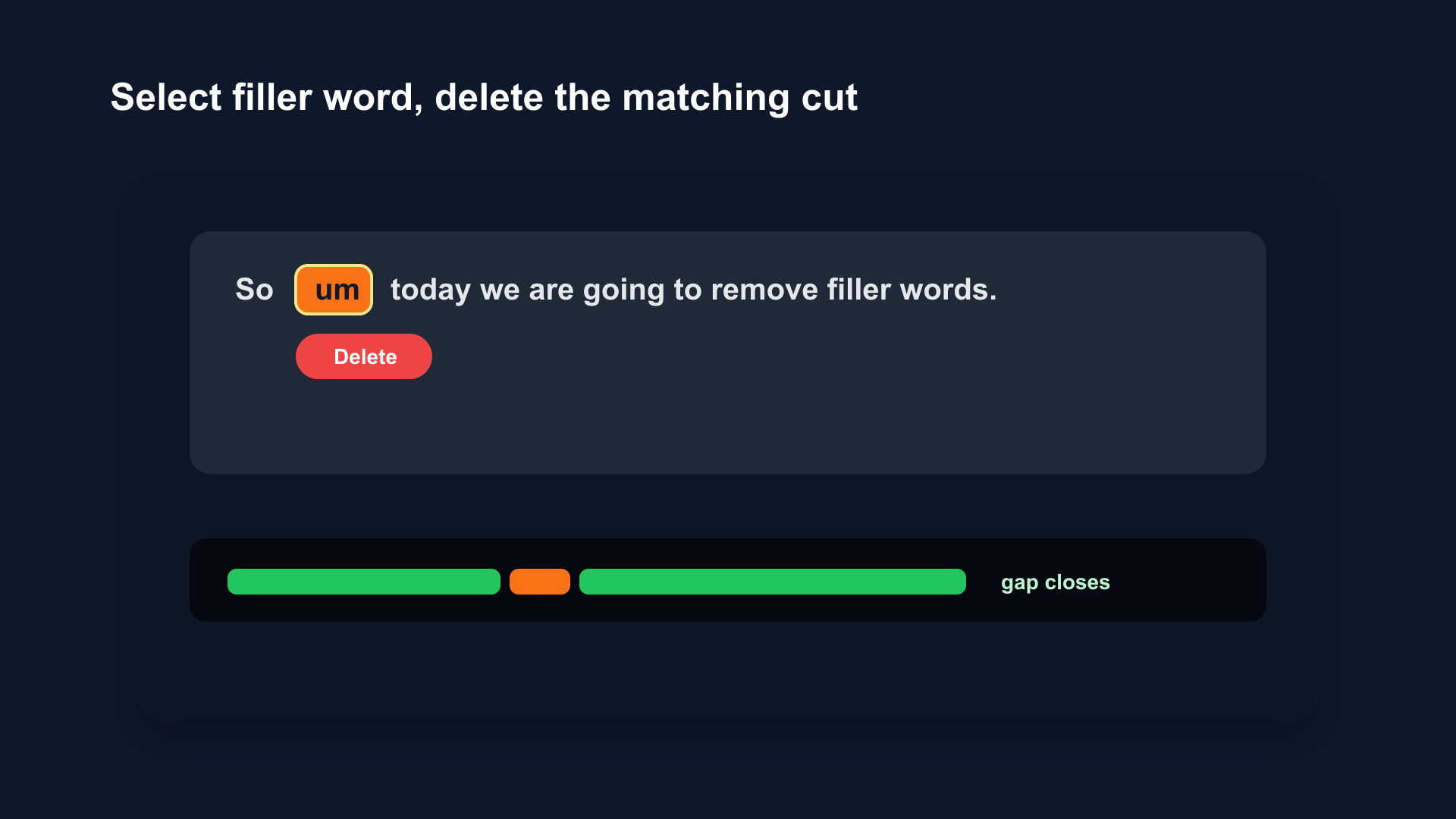
Illustrative transcript editing mockup. Select the filler word in the transcript, tap Delete, and the matching video segment is removed — no blade tool, no ripple edit, no timeline scrubbing required.
Step 6: Review and Export
Play back the edited transcript to confirm the pacing sounds natural. Then export at full quality. BlitzCut exports in your original resolution and supports 4K, 1080p, and vertical formats.
Filler Words vs. Silence: What's the Difference?
This is an important distinction that most guides miss.
Silence removal targets audio gaps — sections where no speech is detected. Tools like BlitzCut's auto-cut feature and Timebolt detect these automatically without any transcript.
Filler word removal targets spoken audio that is semantically empty. "Um" is not silence — it has audio content. Pure silence detection will not catch it. You need either:
- A human listener identifying each filler manually, or
- Transcription-based editing that makes filler words visible and selectable as text
This is why transcription editing is the right tool for filler word removal specifically. Audio-based silence removal solves a different (related) problem.
For best results, use both:
- Run silence removal first to cut dead air and extended pauses
- Then review the transcript and remove filler words by text
Which Filler Words to Cut (and Which to Keep)
Not every filler word should go. Removing too many creates unnatural, robotic pacing that feels worse than the original.
Always remove:
- Mid-word fillers: "I um wanted to..."
- Repeat starts: "So— so what I mean is..."
- Extended hedge strings: "Basically, like, you know what I mean?"
- Filler at video starts and ends
Usually remove:
- Standalone "um" and "uh" between sentences
- "You know" used more than once per 2 minutes
- "Basically" used as a sentence opener
Consider keeping:
- A brief "um" when building to an important point (it creates emphasis)
- Natural conversational rhythm markers with long-form or educational content
- "Like" in casual formats where authenticity matters more than polish
The goal is clean, not robotic. After editing, your video should sound like a prepared speaker — not a text-to-speech engine.
Tools Comparison: Filler Word Removal
| Tool | Method | Accuracy | Time (15-min video) | Price |
|---|---|---|---|---|
| BlitzCut | Transcription editing | High — visual text selection | 5–10 min | Free trial / $16.99/mo* |
| Descript | Transcript with filler auto-detection | High — highlights fillers automatically | 5–15 min | $24/mo |
| OpusClip | AI filler detection, no transcript | High — automatic one-click removal | 2–5 min | Free / $29/mo |
| CapCut | Auto-caption filler removal | Moderate — common fillers only | 3–8 min | Free / Pro |
| Adobe Premiere | Manual timeline only | Manual — requires listening | 45–90 min | $22.99/mo |
| Kapwing | AI smart cut (web) | Moderate — online only | 5–10 min | Free / $24/mo |
| iMovie | Manual only | Manual | 45–90 min | Free |
*US prices. BlitzCut pricing varies by region; see the price in your country.
The key distinctions: BlitzCut and Descript use transcript-based editing where you see and select each filler. OpusClip and CapCut use automated detection that removes fillers without showing you the transcript — faster, but less control. BlitzCut is the native Mac/iPhone App Store option; Descript costs significantly more and is web/desktop-first. OpusClip is strong for one-click removal when you trust the AI to decide what's filler.
How to Avoid Filler Words When Recording (Prevention Is Faster Than Editing)
The best filler word workflow is recording fewer of them in the first place. These techniques reduce filler density in raw footage:
Script your key points. You don't need a word-for-word script. Bullet points of your 3–5 main ideas give your brain somewhere to go when you'd otherwise fill silence.
Embrace real silence. Most filler words exist because speakers are uncomfortable with pauses. Train yourself to stop speaking and think silently. Silent pauses cut better than filler-filled ones.
Slow down. Filler words often appear when you speak faster than you think. Slowing your delivery by 15% dramatically reduces ums and uhs.
Do one warm-up take. Your first take always has the most fillers. Record a throwaway take to settle your brain, then record the version you'll keep.
Review your previous recordings. Watch your last three videos and count your most common filler patterns. Awareness alone reduces frequency.
Even with prevention, some filler words will appear in every recording. That's normal. Transcription editing in BlitzCut handles the rest.
Frequently Asked Questions
Can you automatically detect and remove filler words without reading the transcript?
Some tools, including Descript, offer automatic filler word detection that highlights common fillers in the transcript. BlitzCut surfaces all words in the transcript for visual scanning. Auto-detection can speed up the process but can also over-remove — words like "like" appear in legitimate contexts. Manual selection in the transcript gives you control over what stays and what goes.
Does removing filler words make video sound unnatural?
It can, if overdone. The key is removing fillers without removing breath and pacing. A good edit removes the "um" but keeps the natural half-second pause that follows it. BlitzCut lets you select exactly which audio to remove, so you can cut the filler word while keeping surrounding silence if it serves the rhythm.
How do I remove filler words from already-uploaded YouTube videos?
You cannot edit a live YouTube video directly. Download the original file, edit it in BlitzCut to remove fillers, then re-upload the edited version. You can replace a video in YouTube Studio using "Upload" on the same video page, which preserves the URL, views, and comments.
What's the difference between silence removal and filler word removal?
Silence removal cuts audio gaps — sections with no speech. Filler word removal cuts spoken words that carry no information. "Um" is not silence — it's audio content that happens to be meaningless. You need transcription editing to see and remove it. For best results, use silence removal first to cut gaps, then transcription editing to cut fillers.
Does BlitzCut work for non-English filler words?
BlitzCut supports multiple languages for transcription. Common filler words vary by language (German: "äh," "ehm"; French: "euh"; Spanish: "eh," "este"), and the transcription will capture them. You can then select and delete them using the same process.
Remove Filler Words — Not Your Time
The 2026 workflow for filler word removal is not manual. It's transcription-based editing: import, transcribe, select the fillers in text, delete, export.
BlitzCut makes this available on Mac and iPhone without a browser upload or complex desktop editor. A 15-minute video full of ums and uhs becomes clean in 10 minutes or less.
Download BlitzCut from the App Store and clean up your next recording in one sitting.
Your audience can't count your filler words if they're not there.
Post every day without spending hours editing
BlitzCut is a native app for iPhone, iPad, and Mac. Get from raw footage to TikTok-ready in under 2 minutes, so editing is never the reason you didn't post.
Try it for freeRelated Articles
Keep Reading

Best Adobe Premiere Rush Alternatives (2026): Where to Go Before It Shuts Down
Premiere Rush support ends September 30, 2026. The best alternatives for Mac, iPhone and Android — including Adobe's own replacement — and how to migrate.

Best AI Clipping Tools, Rated by What Users Actually Say (2026)
Best AI clipping tools compared on independent user reviews, billing complaints, and pricing: Vizard, OpusClip, Klap, Quso, and BlitzReels. Plus OpusClip alternatives.

Best AI Video Editor for iPhone (2026): 8 Apps Ranked
The best AI video editor for iPhone and iOS in 2026: 8 apps ranked by captions, silence removal, speed, and price for TikTok, Reels, and Shorts.